
In this tutorial, I will show you how to set up wired for an automatic queue. This version waits until the queue is full, then allows a group of users enter each time interval.
Set up your wired as shown in the image below.

Set up your queue as shown below. (You can add rollers and change the gates)

Double click the User Walk ON Furni wired, and select the gate.
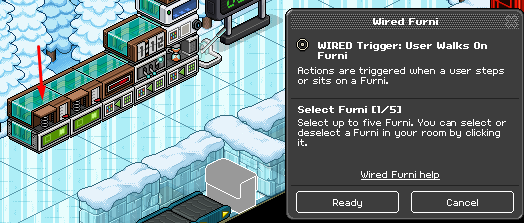
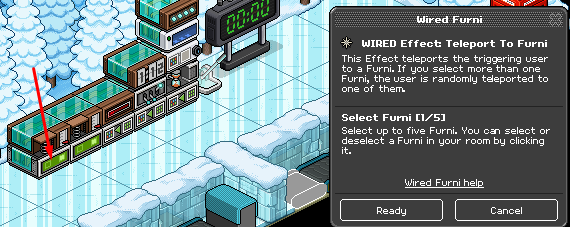
Then Double Click the Teleport to Furni wired and select the 1st roller.
Double click the User Walk ON Furni wired, and select the gate.
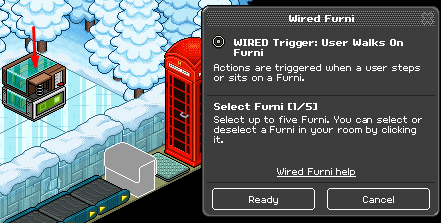
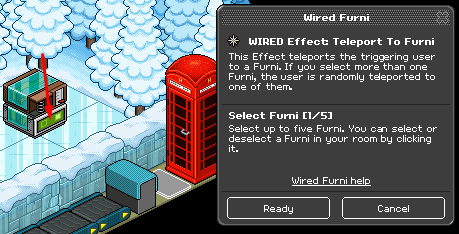
Then double click the Teleport to Furni wired and select the mat.
Toggle the switch so that it is on.

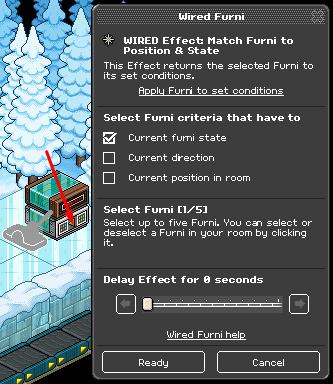
Double click the Match Furni to Position & State Wired, and select the switch. (Ensure Current furni state is ticked)
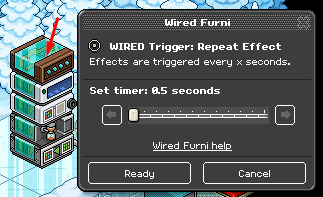
On the largest stack select the Repeat Effect Wired, and set it to 0.5 seconds
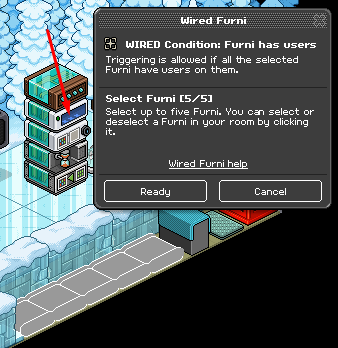
Select the Furni Has Users Wired, and select all the rollers in the closed section. (You can add more of these if you have move than 5 rollers – maximum 5 furni per wired)
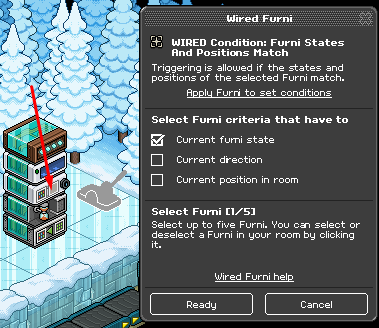
Select the Furni States & Positions Match (condition) Wired, and select the switch. (ensure the switch is still on)
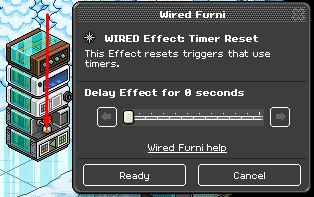
Select the Timer Reset Wired, and set it to 0 seconds time delay.
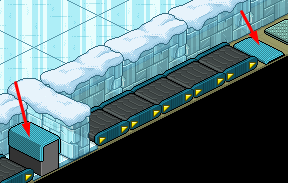
Toggle the entrance gate so that it is closed, and the exit gate so that it is open.
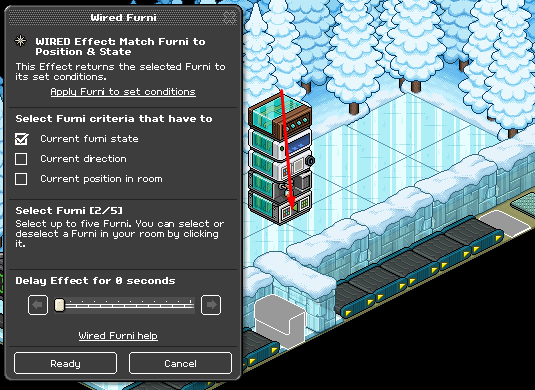
Double click the Match Furni to Position and State Wired, and select both of the gates. (Ensure Current furni state is checked)
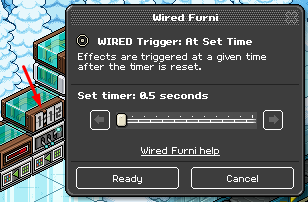
Double click the At Set Time Wired, and set it to 30 seconds. (The delay needs to be longer if you have more rollers)
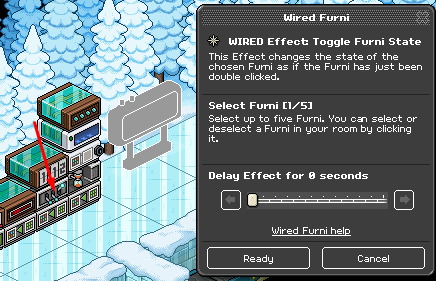
Double click the Toggle Furni State Wired, and select the Counter.
Toggle the entrance gate so that it is open, the exit gate so it is closed and the switch so that it is off.
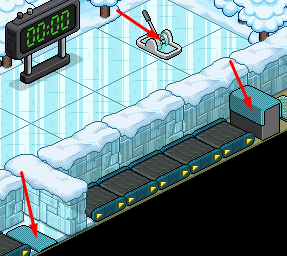
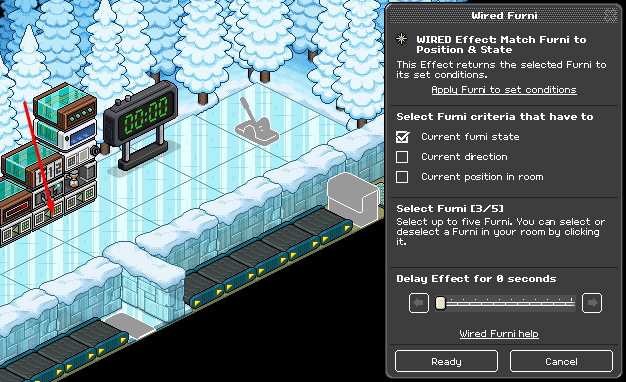
Double click the Match Furni to Position & State, and select the entrance gate, the exit gate and the switch.
Toggle the timer, using the grey button, and select the time period.

To use simply start the timer and your queue should work like this:
You will need:
- 1x Wired Trigger: Game Ends
- 2x Wired Trigger: User Walks ON Furni
- 1x Wired Trigger: Repeat Effect
- 1x Wired Trigger: At Set Time
- 3x Wired Effect: Match Furni to Position and State
- 1x Wired Effect: Timer Reset
- 1x Wired Effect: Toggle State
- 2x Wired Effect: Teleport To Furni
- 1x Wired Condition: Furni States & Positions match
- 1x Wired Condition Furni Has Users1x Counter
- 2x Gate/Door
- 1x Furni to teleport to after queue (e.g mat)
- 1x Furni with changeable states (e.g switch)
- Rollers
Step 1
Set up your wired as shown in the image below.
Step 2
Set up your queue as shown below. (You can add rollers and change the gates)
Step 3
Double click the User Walk ON Furni wired, and select the gate.
Step 4
Then Double Click the Teleport to Furni wired and select the 1st roller.
Step 5
Double click the User Walk ON Furni wired, and select the gate.
Step 6
Then double click the Teleport to Furni wired and select the mat.
Step 7
Toggle the switch so that it is on.
Step 8
Double click the Match Furni to Position & State Wired, and select the switch. (Ensure Current furni state is ticked)
Step 9
On the largest stack select the Repeat Effect Wired, and set it to 0.5 seconds
Step 10
Select the Furni Has Users Wired, and select all the rollers in the closed section. (You can add more of these if you have move than 5 rollers – maximum 5 furni per wired)
Step 11
Select the Furni States & Positions Match (condition) Wired, and select the switch. (ensure the switch is still on)
Step 12
Select the Timer Reset Wired, and set it to 0 seconds time delay.
Step 13
Toggle the entrance gate so that it is closed, and the exit gate so that it is open.
Step 14
Double click the Match Furni to Position and State Wired, and select both of the gates. (Ensure Current furni state is checked)
Step 15
Double click the At Set Time Wired, and set it to 30 seconds. (The delay needs to be longer if you have more rollers)
Step 16
Double click the Toggle Furni State Wired, and select the Counter.
Step 17
Toggle the entrance gate so that it is open, the exit gate so it is closed and the switch so that it is off.
Step 18
Double click the Match Furni to Position & State, and select the entrance gate, the exit gate and the switch.
Step 19
Toggle the timer, using the grey button, and select the time period.
Step 20
To use simply start the timer and your queue should work like this:
- Double click the timer and it will begin counting down.
- When the timer ends, if the queue is full it will close.
- When the queue is finally full, the entrance gate will close and then the exit gate will open
- After one minute the gates and the timer will reset.
Eevee7 years ago