
In this article, you will learn how to keep a gate rotated when a user is on specific furni.
1x Wired Trigger: Repeat Effect
1x Wired Trigger: User Walks On Furni
1x Wired Effect: Match Furni to Position & State
1x Wired Effect: Move And Rotate Furni
1x Wired Negative Condition: Furnis have NO avatars
1x One Way Gate
To begin, place the gate in the position that you want it to be when there are no avatars using the furni.
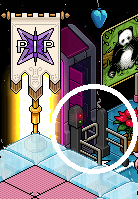
Double click the Wired Trigger: User Walks On Furni and select the banzai portal.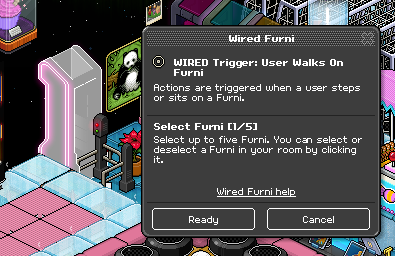
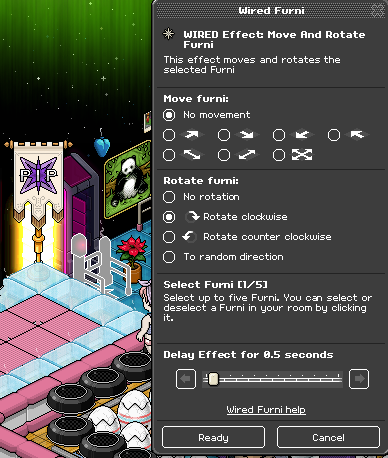
Double click the Wired Effect: Move And Rotate Furni. For the Move furni options, make sure it is selected on No movement. For the Rotate furni options, select Rotate clockwise. For the select furni, click the One Way Gate. Set the delay to 0.5 seconds.
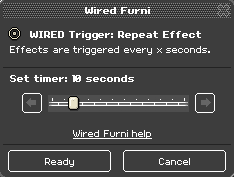
Double click the Wired Trigger: Repeat Effect and set it to 10 seconds delay
.
Double click the Wired Effect: Match Furni to Position & State. Select the One Way Gate, make sure it is facing the way you want it to be when there are no avatars on specific furni. Ensure all the boxes are ticked and then set the delay to 0.5 seconds.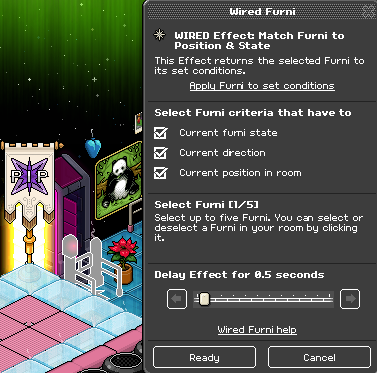
Double click the Wired Negative Condition: Furni has NO avatars. Select the furni that you want to use, in the example of a 3 lane banzai booster, click all 3 ice hockey pucks and 2 freeze tiles.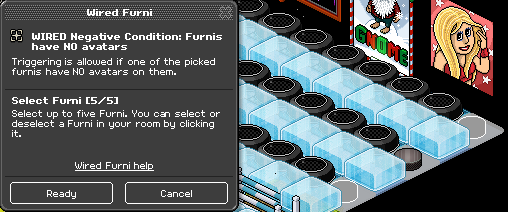
Stack the Wired Trigger: User Walks On Furni and Wired Effect: Move And Rotate Furni on top of each other. Stack the Wired Trigger: Repeat Effect, Wired Effect: Match Furni to Position & State and Wired Negative Condition: Furni has NO avatars on top of each other.

The gate should now rotate when you walk through it and stay that way until the selected furni no longer has someone on it.
You will need:
1x Wired Trigger: Repeat Effect
1x Wired Trigger: User Walks On Furni
1x Wired Effect: Match Furni to Position & State
1x Wired Effect: Move And Rotate Furni
1x Wired Negative Condition: Furnis have NO avatars
1x One Way Gate
Step 1
To begin, place the gate in the position that you want it to be when there are no avatars using the furni.
Step 2
Double click the Wired Trigger: User Walks On Furni and select the banzai portal.
Step 3
Double click the Wired Effect: Move And Rotate Furni. For the Move furni options, make sure it is selected on No movement. For the Rotate furni options, select Rotate clockwise. For the select furni, click the One Way Gate. Set the delay to 0.5 seconds.
Step 4
Double click the Wired Trigger: Repeat Effect and set it to 10 seconds delay
.
Step 5
Double click the Wired Effect: Match Furni to Position & State. Select the One Way Gate, make sure it is facing the way you want it to be when there are no avatars on specific furni. Ensure all the boxes are ticked and then set the delay to 0.5 seconds.
Step 6
Double click the Wired Negative Condition: Furni has NO avatars. Select the furni that you want to use, in the example of a 3 lane banzai booster, click all 3 ice hockey pucks and 2 freeze tiles.
Step 7
Stack the Wired Trigger: User Walks On Furni and Wired Effect: Move And Rotate Furni on top of each other. Stack the Wired Trigger: Repeat Effect, Wired Effect: Match Furni to Position & State and Wired Negative Condition: Furni has NO avatars on top of each other.
The gate should now rotate when you walk through it and stay that way until the selected furni no longer has someone on it.
Eevee7 years ago